Contractions
The Contractions tab allows you to define personalized contractions. If you specify a contraction that already exists in the Default Contractions list, your new definition will overwrite it. Contractions serve various purposes, such as creating acronyms or modifying the pronunciation of words when using the text-to-speech engine.
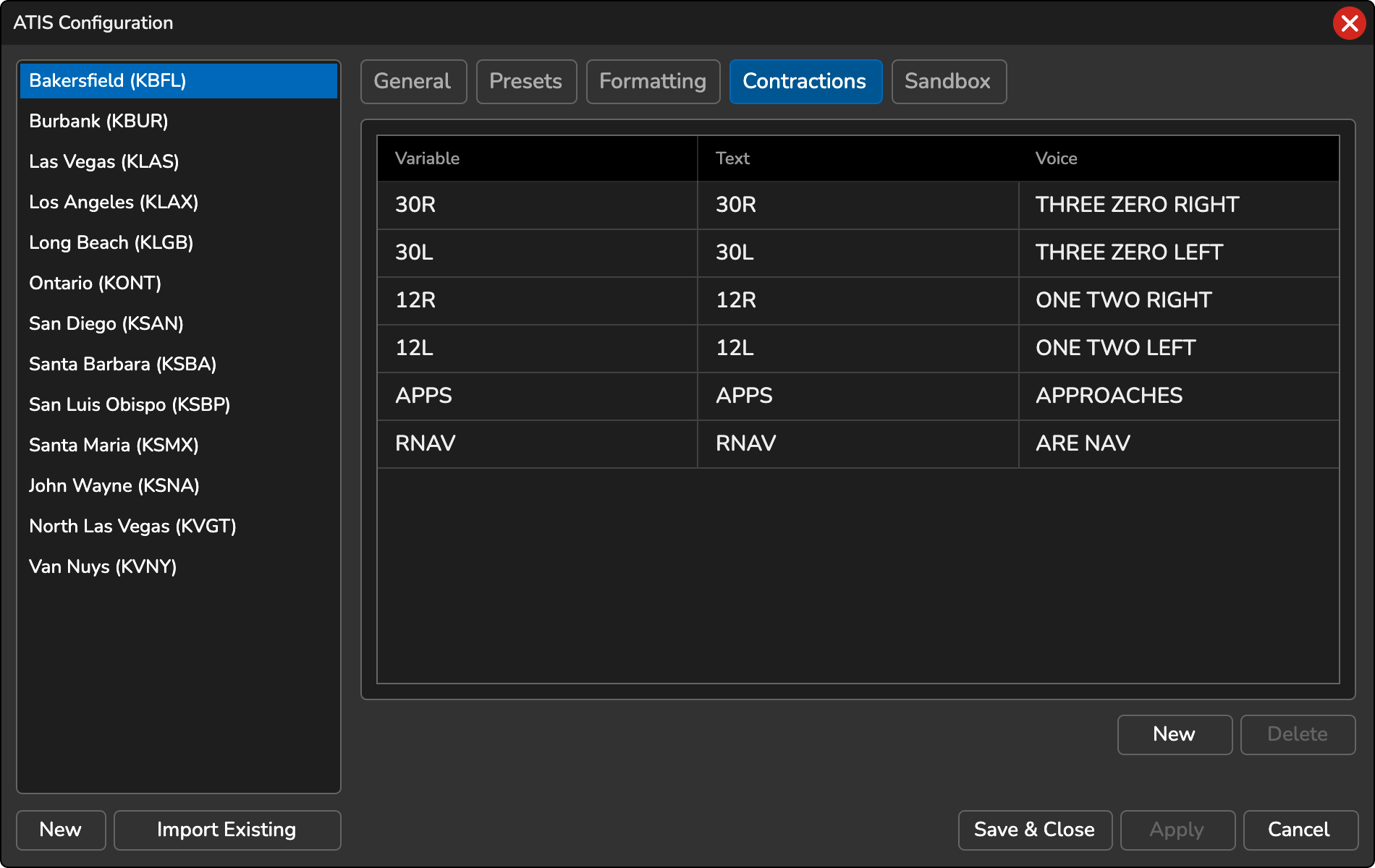
Adding New Contraction
- To add a new contraction, click the New button.
- A dialog will open, prompting you to enter the following details:
- Variable: The name of the contraction variable. If you enter multiple words, it will be automatically converted to variable format (e.g., spaces will be replaced with underscores).
- Text: The written ATIS text that will be displayed.
- Voice: The text that will be spoken by the voice synthesizer.
- Add to all ATIS stations in this profile: When checked, the contraction is added to every ATIS station in the current profile instead of only the selected one.
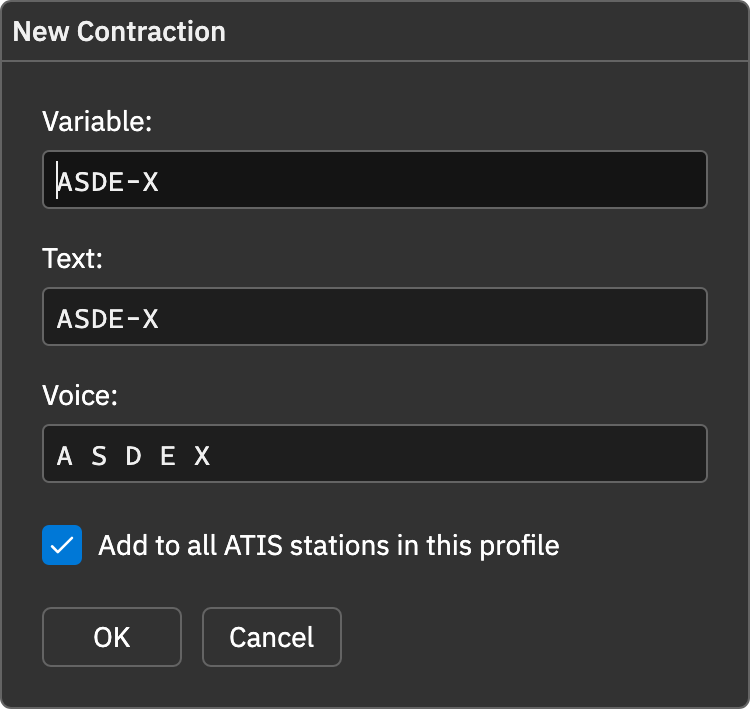
After filling in the required information, save the contraction to make it available for use in your ATIS messages.
Editing Existing Contraction
- Double-click on the text you want to change.
- A textbox will appear where you can make your edits.
- Press the Enter key on your keyboard to commit the changes.
Deleting Contraction
- Select the contraction from the table.
- Click the Delete button to remove the contraction. This action is irreversable.
Using Contractions
Contractions and speech tokens (such as numbers written in group format, e.g. *5058) are underlined in the ATIS template and Airport Conditions and NOTAMs editors. Hover over the underlined text to see how it will be spoken.
To include a contraction, type the @ symbol, followed by the contraction variable name. As you type, an autocomplete popup menu will display the available contraction options, allowing you to quickly select the desired contraction.